Referral That Need Scheduling
Overview
When a provider refers a patient to another provider, the case manager receives an Activity feed entry to complete scheduling for the referral. If authorization is required, the card indicates when it has been approved and scheduling can proceed.
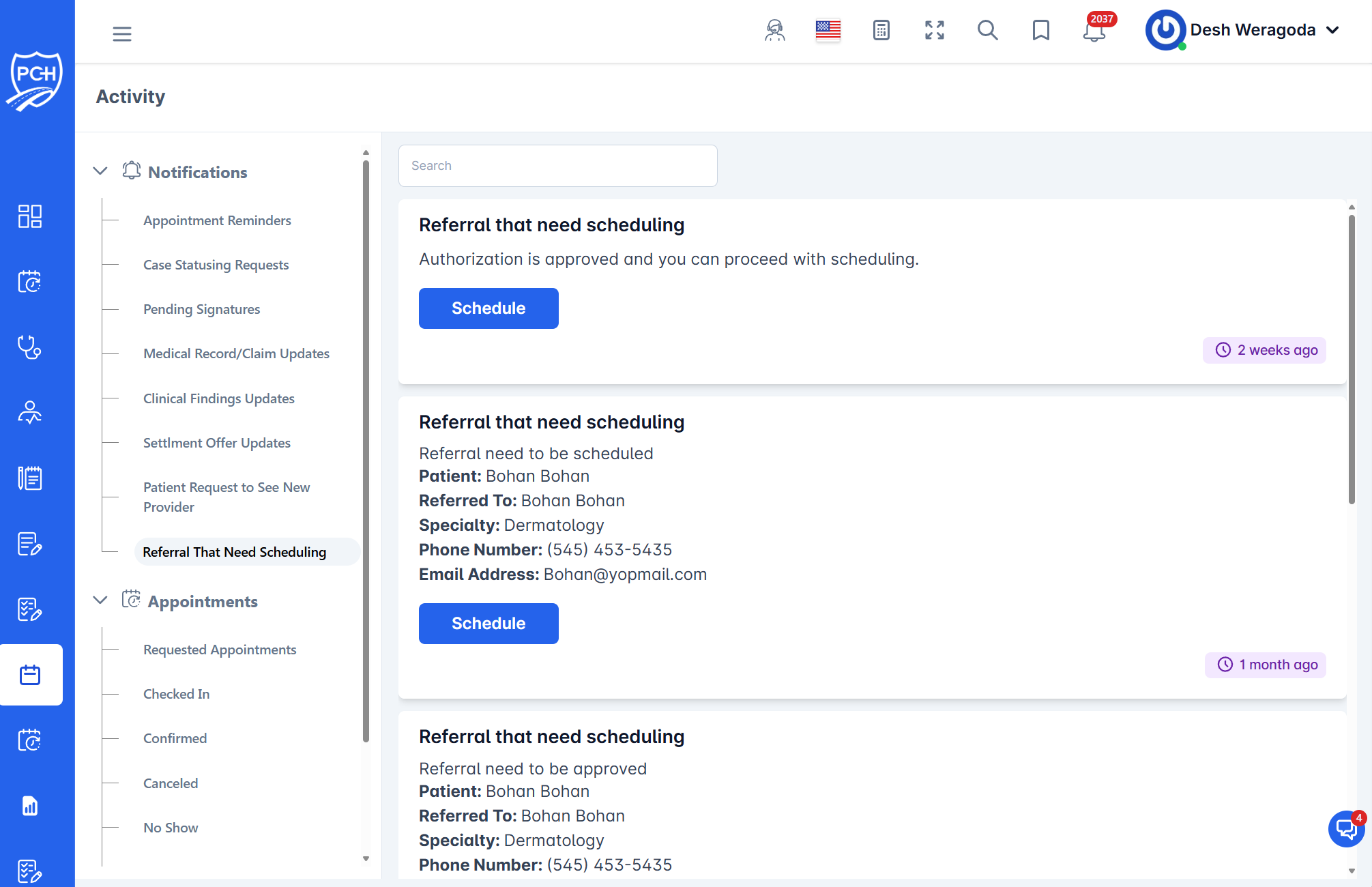
What each card shows
- Title: "Referral that need scheduling".
- Message: Status note such as "Authorization is approved and you can proceed with scheduling" or "Referral need to be scheduled/approved".
- Patient: Name of the patient.
- Referred To: The destination provider.
- Specialty: Target specialty.
- Phone Number and Email Address: Contact details for coordinating.
- Schedule / Schedule Now: Action button to initiate appointment creation.
- Timestamp badge: Relative time since the referral was created/updated.
Behavior
- Trigger: A referral is created by the current provider for continued care with another provider.
- Authorization: Card messaging reflects authorization state (e.g., approved vs. pending) and may gate scheduling steps.
- Visibility: Appears to assigned attorneys/case managers for the case.
How to act on the referral
- Click Schedule to start scheduling with the referred provider.
- If auth is pending, follow your workflow to obtain approval, then return and schedule.
- Confirm date/time with the provider using the contact info, finalize, and save the appointment.
Tips
- Escalation: If the provider has limited availability, propose alternatives in the same specialty and document the decision.
- Search: Filter by patient or provider name to locate referrals quickly.
Troubleshooting
- Cannot schedule yet? Check the card message—authorization may still be pending; verify in the authorizations screen.
- Missing referral details? Refresh the page; if still missing, check the case’s Referrals section for full context.