Appointments - Rescheduled
Overview
If the patient or provider reschedules an appointment, the appointment status is updated and a Rescheduled notification appears in the Activity feed for the attorney and case manager.
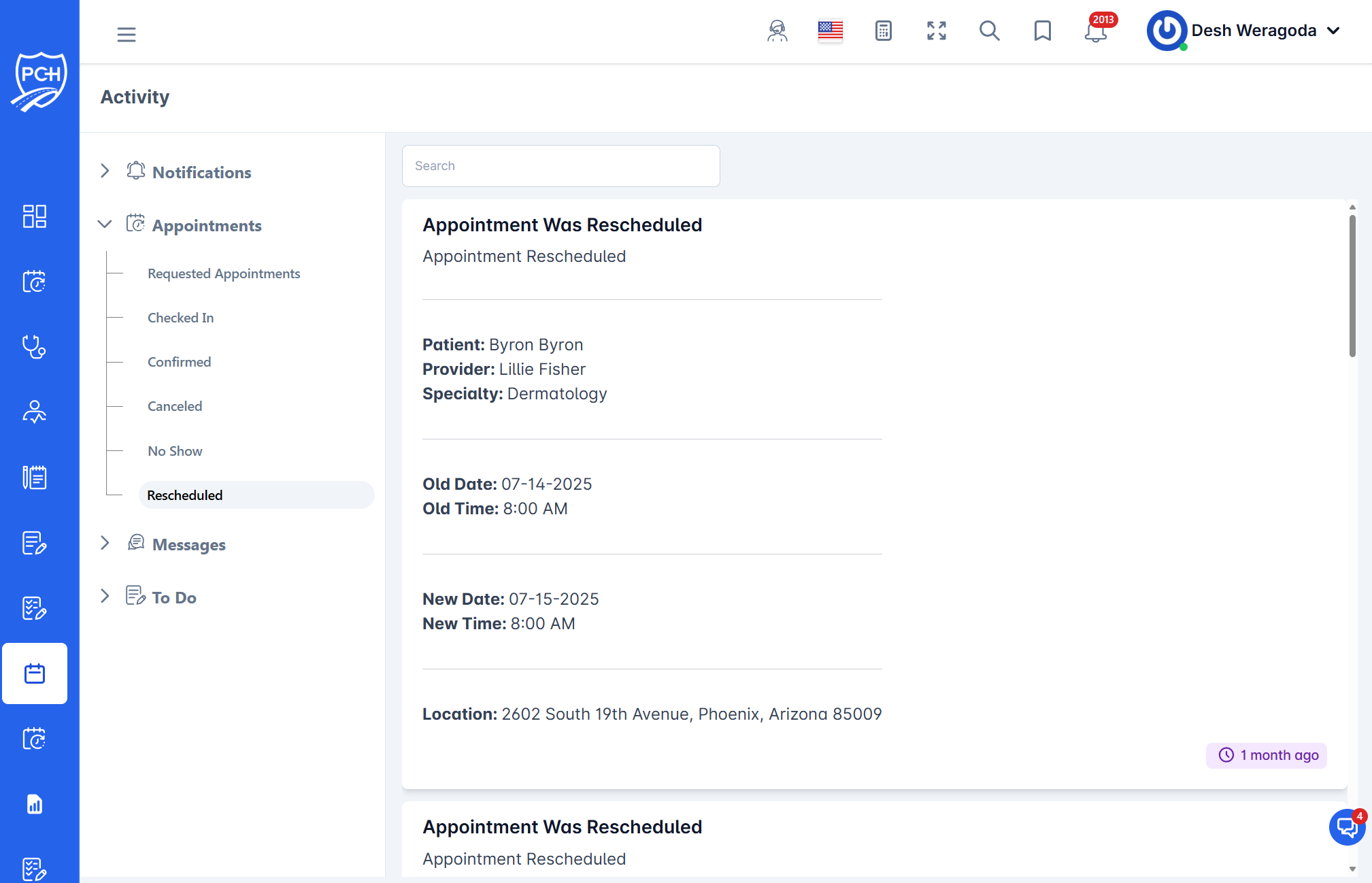
What each card shows
- Title: "Appointment Was Rescheduled".
- Message: "Appointment Rescheduled".
- Patient: Patient name.
- Provider: Treating provider/facility.
- Specialty: Provider specialty.
- Old Date and Old Time: The original schedule.
- New Date and New Time: The updated schedule.
- Location: Appointment address.
- Timestamp badge: When the reschedule occurred (e.g., "1 month ago").
Behavior
- Trigger: Patient or provider changes the scheduled date/time.
- Effect: Appointment status set to Rescheduled; notification posted in the case feed.
- Related statuses: You may also see prior Reminders or a later Confirmed/Checked In entry for the new date.
Recommended actions
- Review the new date/time and update any dependent tasks (transportation, reminders, authorizations).
- Send updated confirmation/prep info to the client if necessary.
- Verify conflicts with upcoming court events or other visits.
Tips
- Search: Filter by patient or provider to find reschedules for a case.
- Follow-through: Ensure a new confirmation is captured ahead of the new date.
Troubleshooting
- Wrong new date/time? Verify in the scheduling module and correct the appointment.
- Multiple reschedules? Check the audit trail in scheduling and confirm the latest entry.