Patient Request to See New Provider
Overview
When a patient logs into the Patient Portal and requests an appointment with a provider from the PCH Network, a notification appears in your Activity feed prompting you to schedule with that provider.
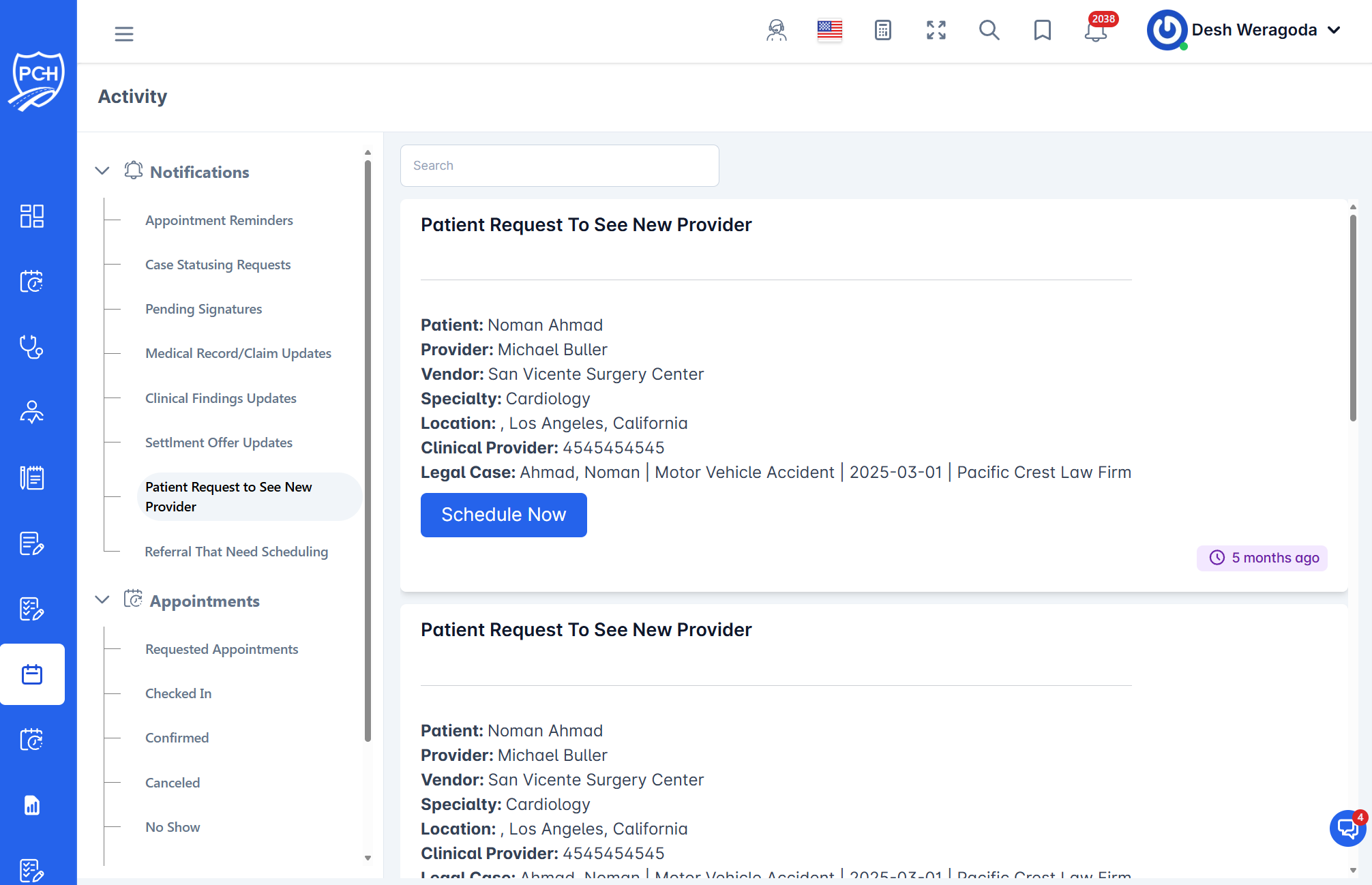
What each card shows
- Title: "Patient Request To See New Provider".
- Patient: Name of the requesting patient.
- Provider: Requested provider’s name.
- Vendor: Facility or practice.
- Specialty: Provider specialty.
- Location: City/state of the provider.
- Clinical Provider: Contact phone if available.
- Legal Case: Client, incident type, incident date, and firm.
- Schedule Now: Action button to initiate scheduling.
- Timestamp badge: When the request was submitted.
Behavior
- Trigger: Patient searches the network and submits a request for a specific provider.
- Routing: Sent to the attorney or case manager assigned to the case.
How to act on the request
- Click Schedule Now to begin creating an appointment with the requested provider.
- Confirm availability with the provider/vendor (or offer alternatives if unavailable).
- Save the appointment; the patient will see scheduled details in their portal.
Tips
- Alternative options: If the requested provider cannot see the patient, propose comparable providers nearby and document the decision.
- Search: Use the feed search to filter by patient or provider name.
Troubleshooting
- Button not working? Refresh the page and try again; verify your case permissions.
- Request not visible? Clear filters and ensure the patient is linked to the case.