Appointments - Confirmed
Overview
Prior to the appointment, PCH’s automated system and the provider’s office reach out to the patient to confirm attendance for the next day. When the patient confirms “Yes,” the appointment status is set to Confirmed and a notification appears in the Activity feed for the attorney and case manager.
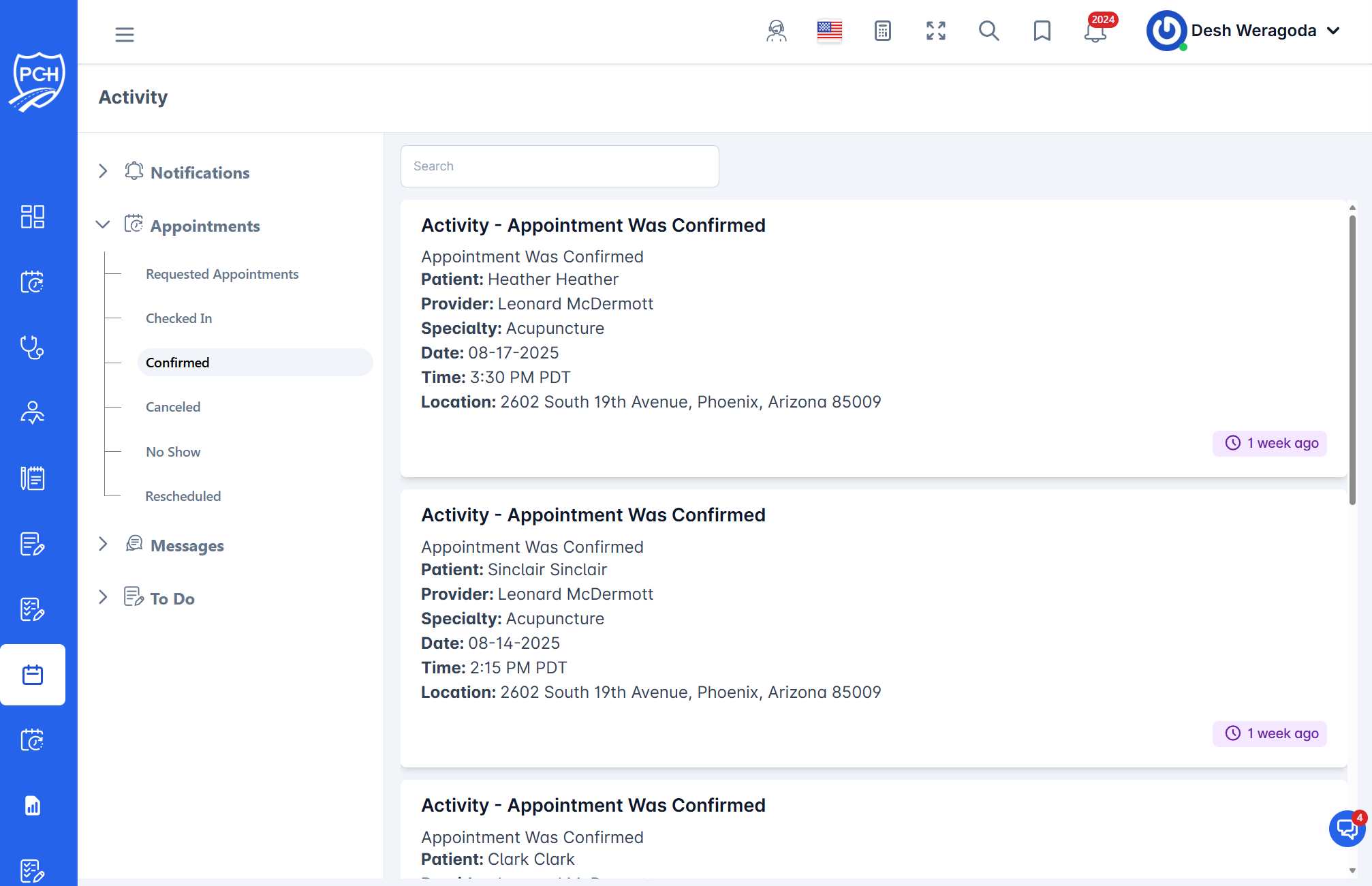
What each card shows
- Title: "Activity - Appointment Was Confirmed".
- Message: Confirms the appointment was acknowledged by the patient/provider.
- Patient: Patient name.
- Provider: Treating provider/facility.
- Specialty: Provider specialty.
- Date and Time: Scheduled visit date/time with timezone.
- Location: Address of the appointment.
- Timestamp badge: When the confirmation occurred (e.g., "1 week ago").
Behavior
- Trigger: Successful confirmation via automated outreach or provider call/text.
- Effect: Appointment status changes to Confirmed; notification is posted to the case feed.
- Reliability: If the patient declines or cannot be reached, this entry will not appear; other statuses (e.g., reminders or reschedule) may be generated instead.
How to use it
- Review the confirmation to ensure the patient plans to attend.
- If travel or prep instructions are needed, send them to the client.
- Monitor for check-in on the day of the visit and subsequent record retrieval.
Tips
- Search: Filter by patient or provider name to locate specific confirmations.
- No confirmation received? Consider proactive outreach to reduce no-shows.
Troubleshooting
- Confirmed but then canceled? The feed will show a separate Canceled entry; follow that workflow.
- Details look wrong? Verify in the scheduling module and correct the appointment record.