Appointments - Canceled
Overview
This page documents the Activity feed entries shown when a client’s appointment is canceled. These cards help attorneys and case managers quickly see which visits were canceled and by whom to follow up as needed.
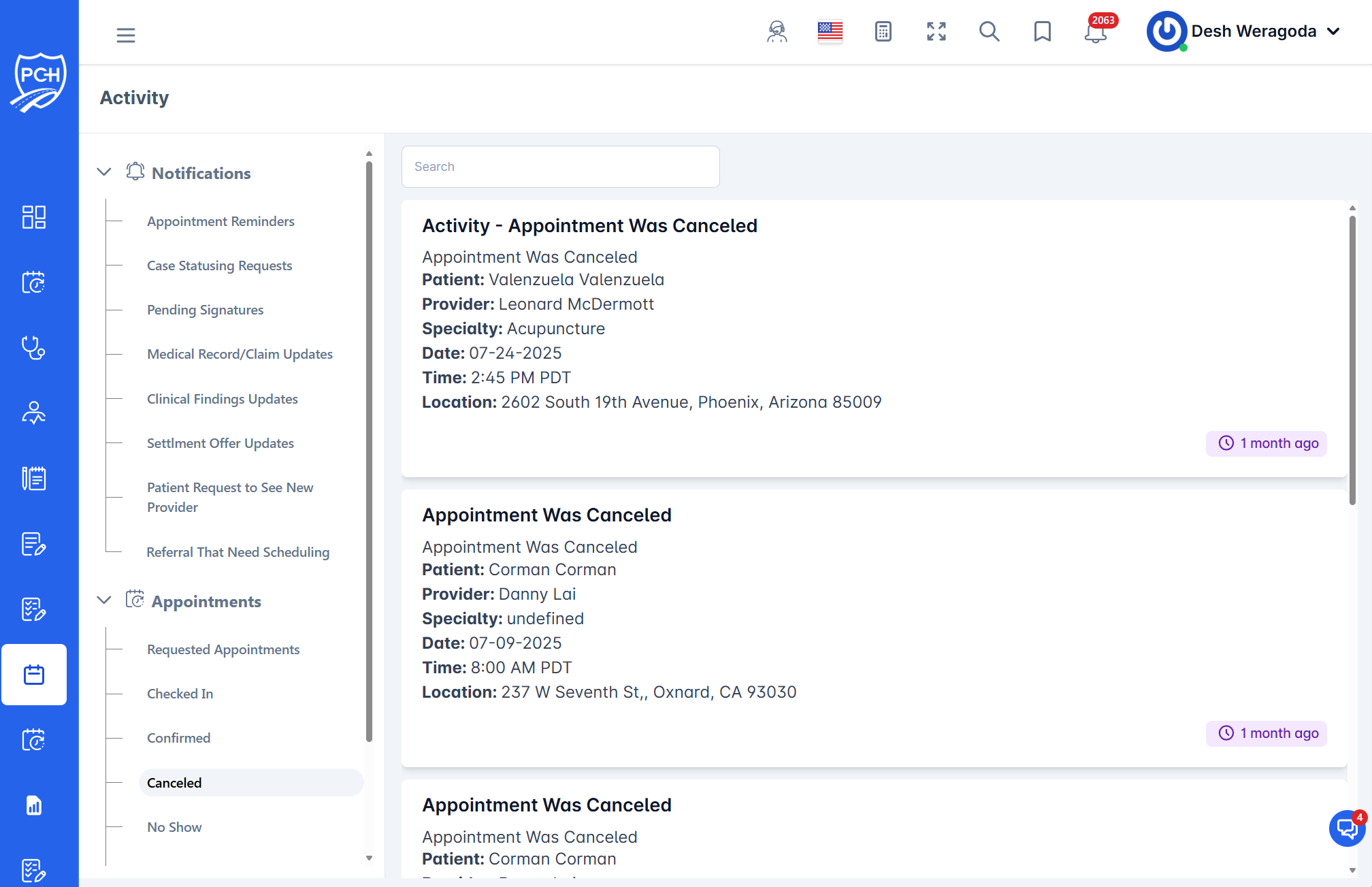
What you see on each cancellation card
- Title: "Appointment Was Canceled".
- Client: Patient name associated to your case.
- Provider: PCH provider name.
- Specialty: Provider specialty, if available.
- Date and Time: Original scheduled date/time of the canceled appointment.
- Location: Clinic address tied to the canceled visit.
- Timestamp badge: Relative time indicating when the cancellation was logged (e.g., "1 month ago").
How to use this feed
- Triage cancellations: Identify which clients lost appointment slots and may require rescheduling.
- Search: Use the search bar to filter by patient, provider, specialty, address, or date.
- Open related items: From other areas of the portal, open the related appointment/patient to reschedule or message the client. Activity cards here are read-only.
When these entries appear
- When an existing appointment tied to your accessible cases is canceled in scheduling.
- The card reflects the latest cancellation event and remains in the Activity feed history for auditability.
Tips
- Rescheduling: After a cancellation, consider sending a new appointment request to the provider or proposing alternate dates to the client.
- Notifications: Depending on configuration, clients may receive SMS/Email notices when a cancellation is recorded.
- Timezone: Times display in the portal’s configured timezone.
Troubleshooting
- Don’t see a cancellation you expect? Clear search and scroll. Verify you have access to the case and the appointment was canceled (not just edited).
- Wrong details? Refresh the page; the feed mirrors scheduling updates. If issues persist, confirm the source schedule record.