Messages - Email
Overview
Every email we send is also logged to the Activity feed. This provides a reliable audit trail in case a recipient misses the email or it is filtered/blocked. The card shows the email summary and any contextual actions.
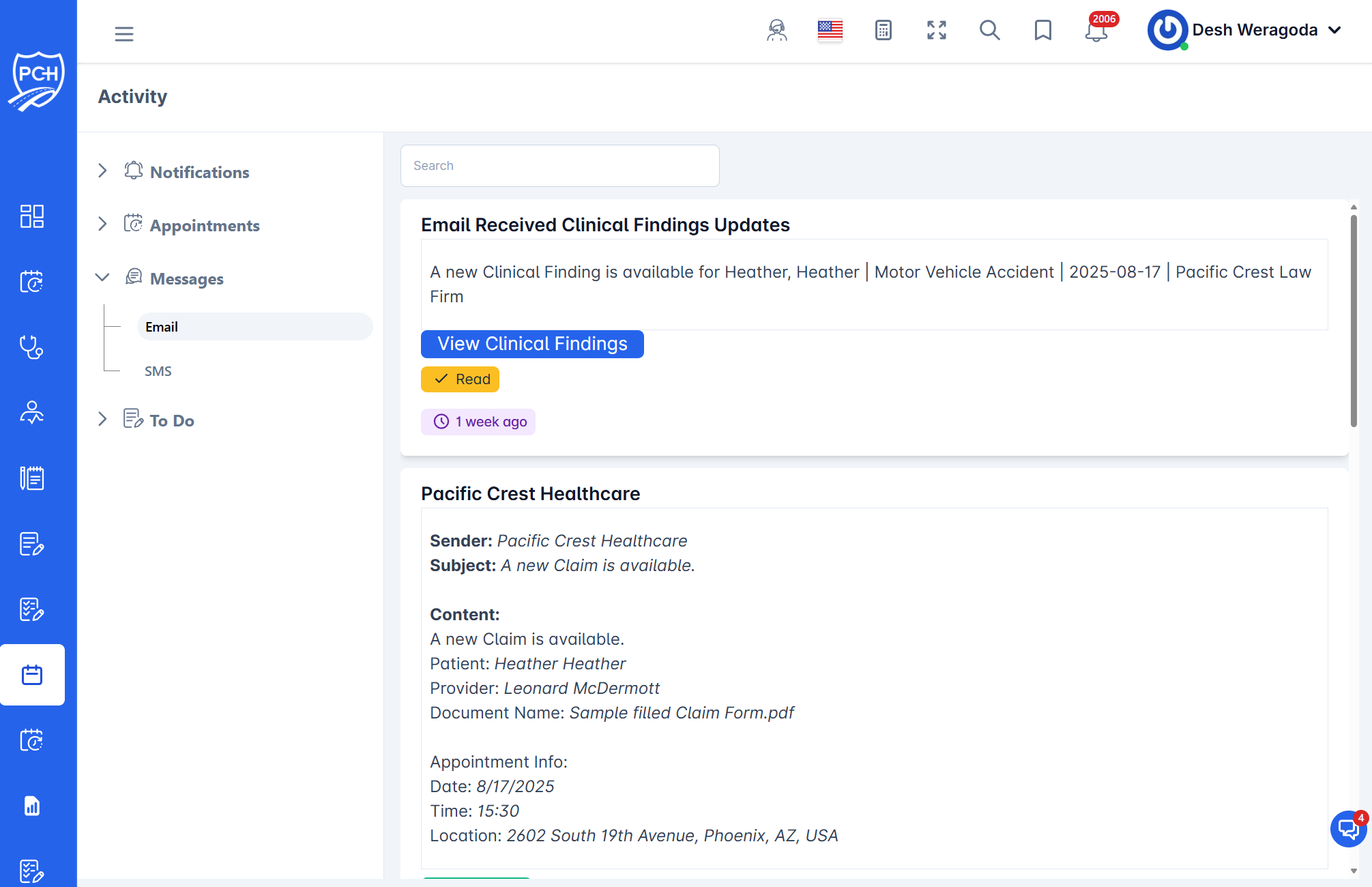
What each card shows
- Title: Context of the message (e.g., "Email Received Clinical Findings Updates").
- Primary action (when applicable): Action related to the email, such as
View Clinical Findings. - Read badge: Indicates whether the item has been viewed in the feed.
- Timestamp badge: When the email event was logged (e.g., "1 week ago").
- Sender: Who sent the email (e.g., Pacific Crest Healthcare).
- Subject: Email subject line.
- Content preview: Short summary of the message body.
- Patient: The patient associated with the message.
- Provider: Provider/facility referenced.
- Document Name: If the email references a document, its name is listed.
- Appointment Info: Date, time, and location if the message includes visit details.
Behavior
- Trigger: Any outbound email related to a case is automatically logged to the Activity feed.
- Scope: Includes system-generated emails (e.g., clinical findings, claims updates) and provider communications integrated with the platform.
- Visibility: Attorneys and case managers on the case will see the entry.
Recommended actions
- Use the action button (e.g.,
View Clinical Findings) to open the relevant area. - If client follow-up is needed, create a task or send a follow-up email/SMS from the Messages module.
- File critical attachments into the case documents if not already present.
Tips
- Search: Filter the Activity feed by Messages > Email, then search by patient, subject, or provider.
- Audit trail: Use the feed entry as a timestamped record of what was sent and when.
Troubleshooting
- Recipient didn’t receive the email? Check spam/junk and verify the email address in the Contact record; resend from the Messages module.
- Attachment missing? Confirm the document exists in the case and reattach before resending.
- Action button not working? Refresh the page and ensure you have access to the referenced module (e.g., Clinical Findings).