Clinical Findings Updates
Overview
Clinical Findings Updates appear when one of the client’s reports contains a new clinical finding that may impact the case. These entries alert attorneys and case managers to review the latest findings promptly.
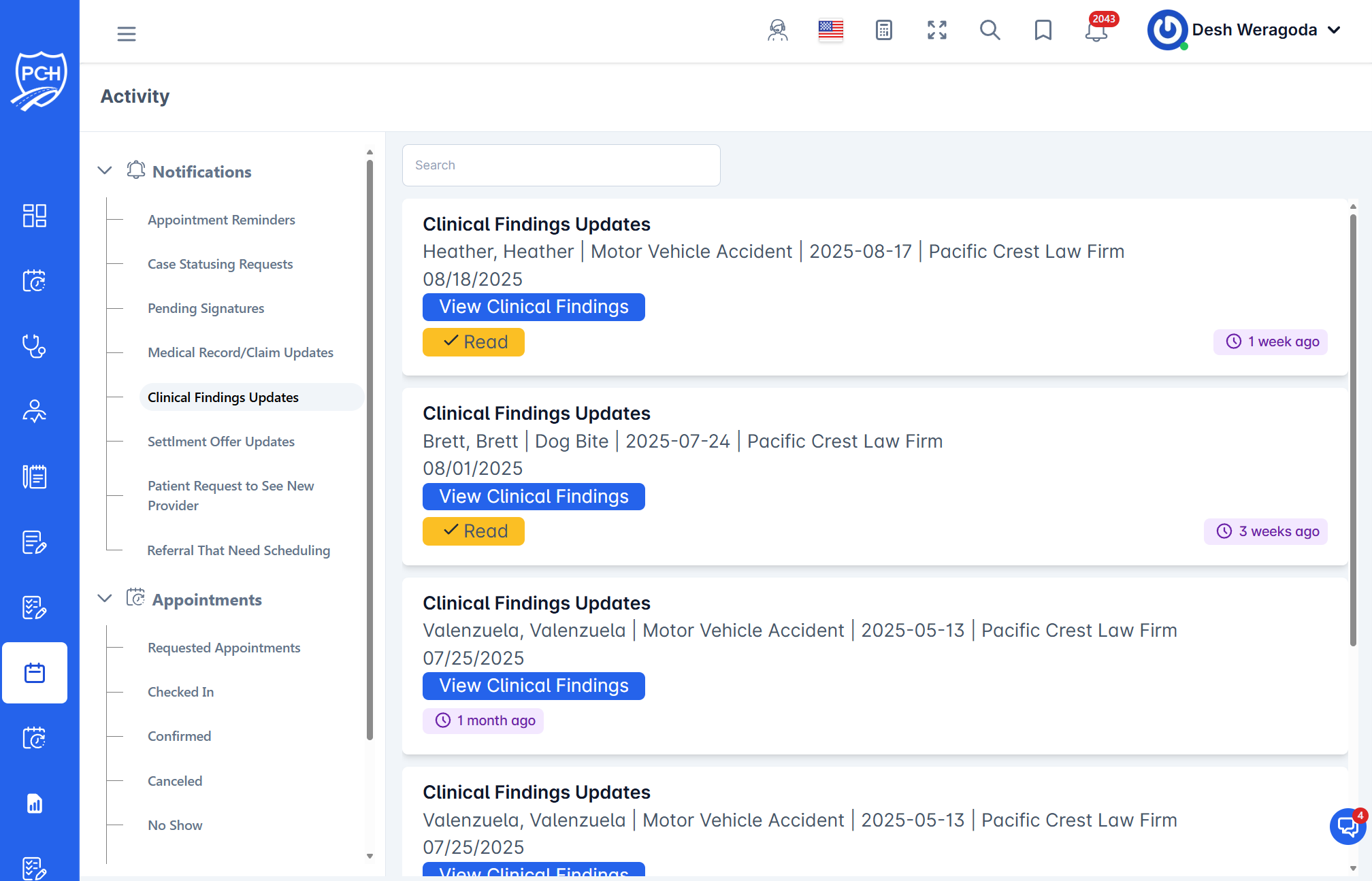
What each card shows
- Title: "Clinical Findings Updates".
- Case context: Client name(s), incident type, incident date, and firm name.
- Buttons:
- View Clinical Findings: Opens the latest findings for detailed review.
- Read: Marks the item as read/acknowledged in the feed.
- Timestamp badge: Relative time since the finding was logged (e.g., "1 week ago").
Behavior
- Trigger: New or updated clinical findings are added to the case record.
- Visibility: Entries show for cases you have access to and remain for history until acknowledged.
Recommended actions
- Click View Clinical Findings to review the newly surfaced details.
- If follow-up is needed (e.g., additional treatment, record requests, or case valuation updates), coordinate with the provider and update internal notes.
- Click Read to acknowledge and clear the alert from your unread items.
Tips
- Search: Filter by client or incident details visible on the card.
- Collaboration: Share key updates with your team as required by firm workflow.
Troubleshooting
- Buttons not opening findings? Refresh and try again; confirm you still have access to the case.
- Don’t see an expected update? Clear search and scroll; verify the provider finalized and published the finding.