Appointment Reminders
Overview
This page documents the Appointment Reminders in the attorney and case manager Activity feed. These entries notify you that one of your clients has an upcoming appointment with a PCH Provider.
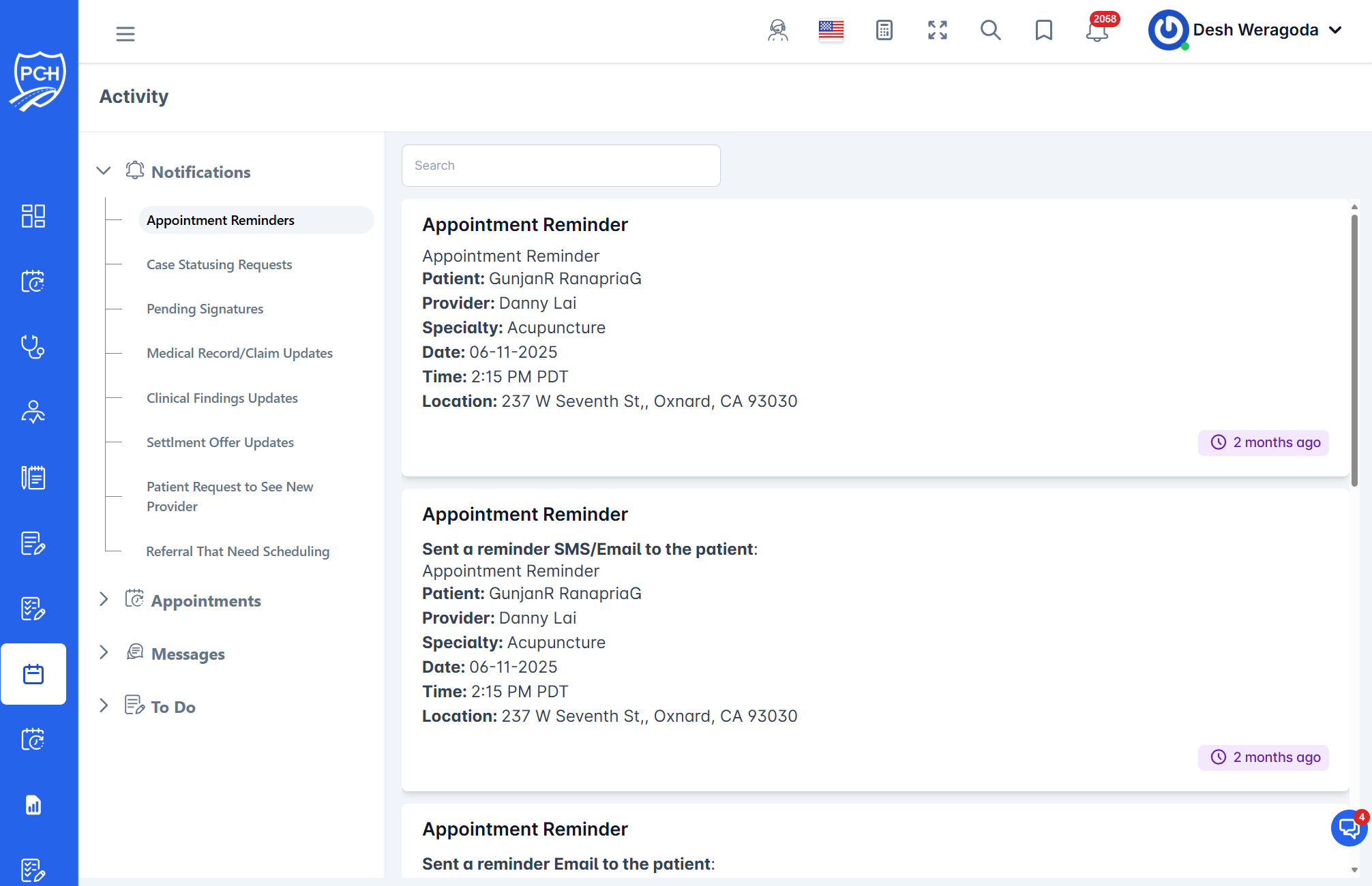
What you see on each reminder card
- Title: "Appointment Reminder".
- Client: Patient name associated to your case.
- Provider: PCH provider name.
- Specialty: Provider specialty (e.g., Acupuncture).
- Date and Time: Appointment date and local time (e.g., 2:15 PM PDT).
- Location: Clinic address.
- Status note (if present): Indicates how the reminder was sent (e.g., "Sent a reminder SMS/Email to the patient").
- Timestamp badge: Relative time the reminder was created (e.g., "2 months ago").
How to use this feed
- Scan upcoming visits: Quickly confirm which clients have scheduled appointments with PCH providers.
- Search: Use the search bar to filter by patient, provider, specialty, location, or date keywords shown on the cards.
- Open related items: Click into the patient or appointment from elsewhere in the portal to view full details or make changes. Activity cards here are read-only.
When reminders appear
- When appointments are scheduled for your clients linked to your cases.
- When the system logs an automated reminder delivery to the patient (SMS/Email), the delivery note appears at the top of the card.
- Timing: Automated reminders are sent 8 hours prior to the scheduled appointment time.
Tips
- Timezone: Times are displayed in the portal’s configured timezone; examples may show PDT.
- PHI: Appointment details contain PHI and are visible only to authorized users.
Troubleshooting
- Can’t find a reminder? Clear the search, then scroll the feed. Verify the appointment is scheduled and you have access to the case.
- Details look outdated? Refresh the page; the feed reflects the latest scheduling and reminder activity.