Medical Record / Billing Updates
Overview
Medical Record/Claim Updates appear in the Activity feed when a new document has been added to the case and is ready for you to download or view. Typical documents include medical reports, claim forms, and billing artifacts.
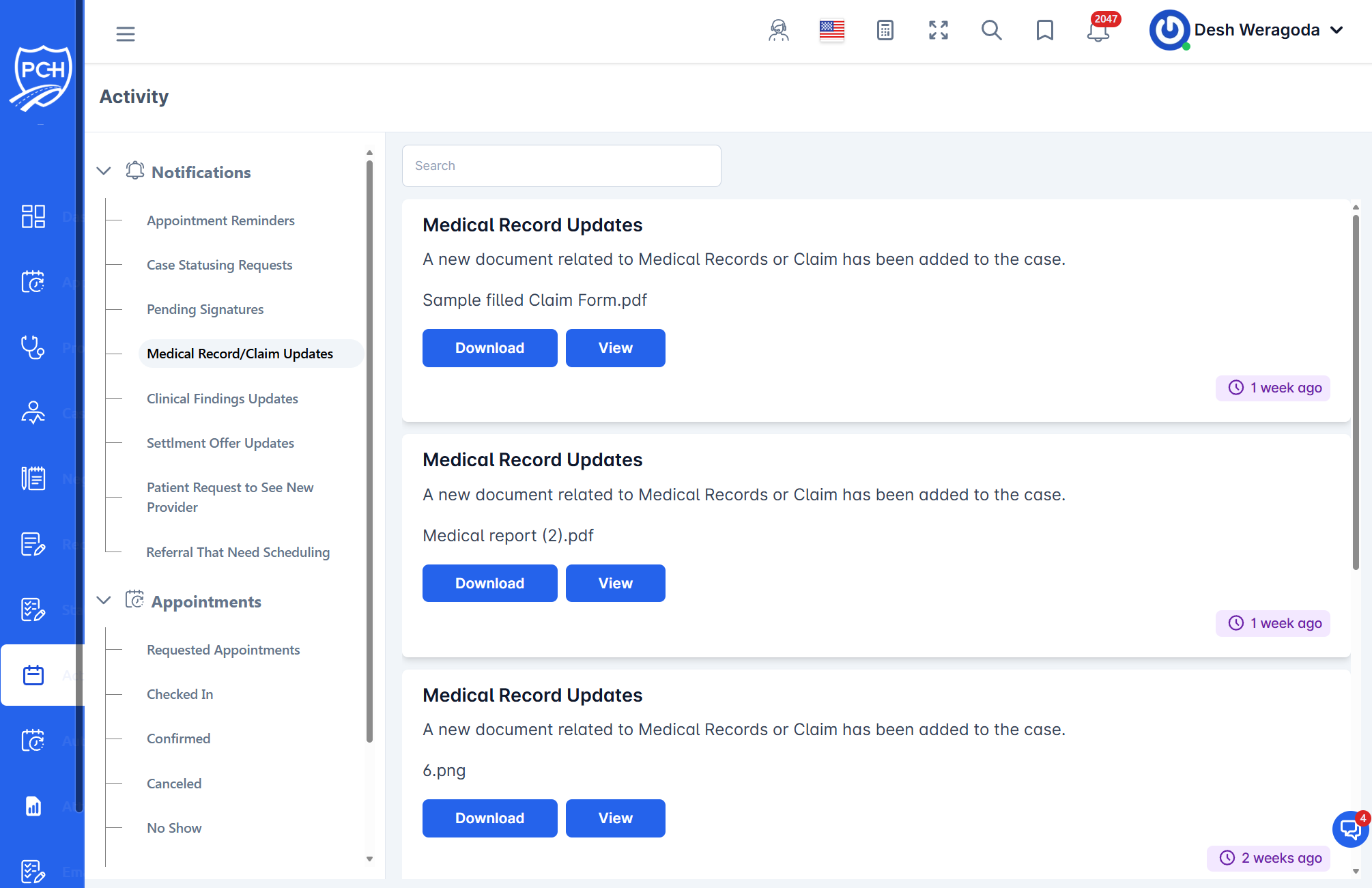
What each card shows
- Title: "Medical Record Updates".
- Message: Indicates a new document related to Medical Records or Claim was added.
- Document name: The file name (e.g.,
Sample filled Claim Form.pdf). - Actions: "Download" and "View" buttons.
- Timestamp badge: Relative time since the document was added (e.g., "1 week ago").
Behavior
- Trigger: A new document is uploaded to the case and becomes available to you.
- Availability: Items appear only for cases you can access and remain in history for auditability.
How to use it
- Click View to quickly preview the document, or Download to save a copy.
- File names reflect the uploaded source; rename locally as needed for your records.
- Return to the case documents area for the full library if you need additional files.
Tips
- Search: Filter by file name keywords shown on the card to find specific documents.
- Security: Documents may contain PHI; handle and store according to your firm’s policies.
Troubleshooting
- Buttons not responding? Refresh the page and try again. If the issue persists, verify your case access.
- Document missing? It may have been moved or replaced—check the case’s Documents section.