Calendar
Overview
The Dashboard Calendar shows all upcoming appointments for clients on legal cases where you are the Primary Attorney or Case Manager. It gives a quick at-a-glance view without leaving the dashboard.
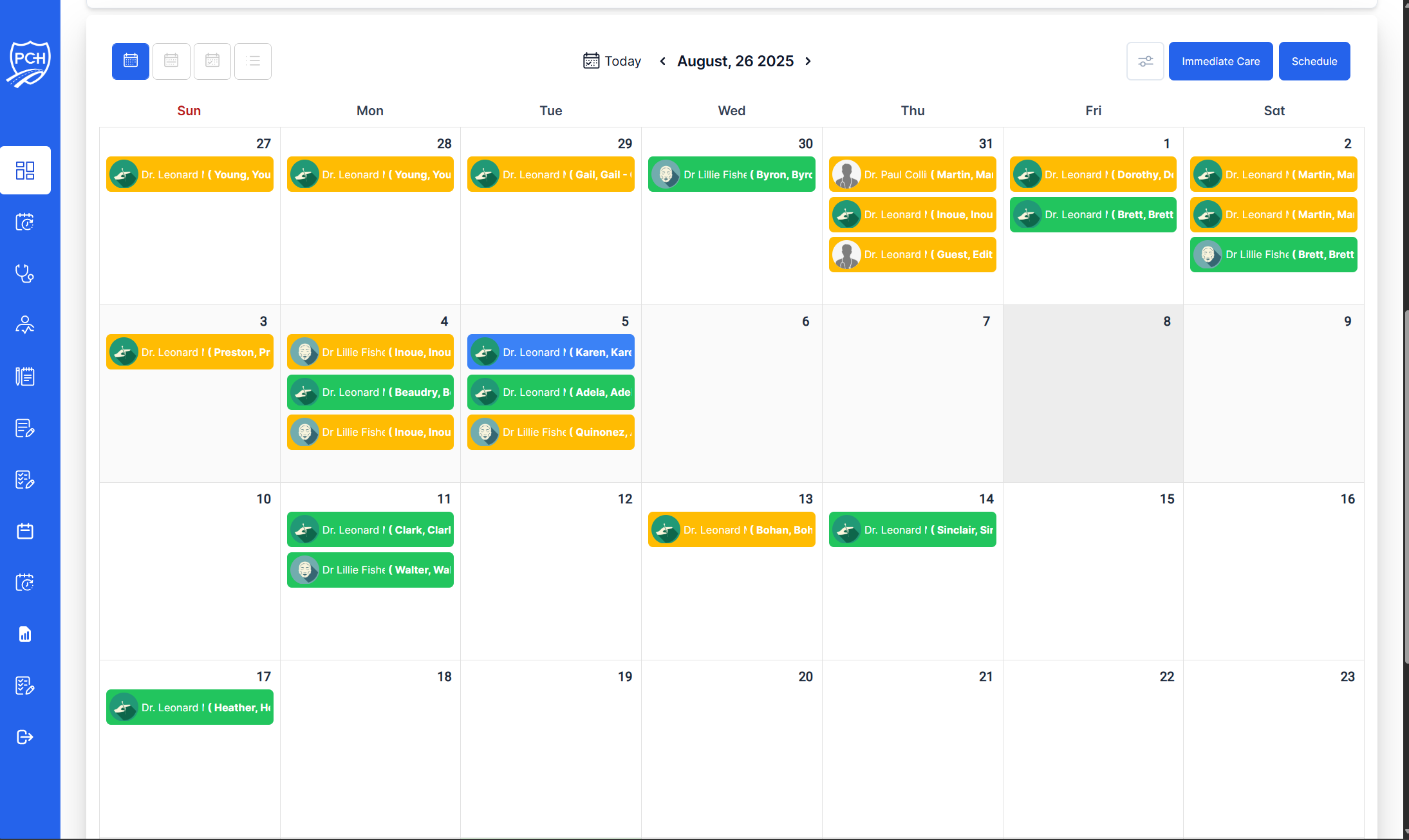
What you’ll see
- Month/Week/Day toggle: Switch views directly from the dashboard (if enabled).
- Appointment chips/cards: Display provider, patient, and status color/badges.
- Navigation: Today, previous/next period controls.
Behavior
- Scope: Only appointments associated with your assigned cases are shown.
- Real‑time updates: Status changes (Confirmed, Checked In, Rescheduled, Canceled, No Show) reflect shortly after they occur.
- Deep links: Clicking an item can open the Appointment Details modal or the full Appointments page, depending on configuration.
Common actions
- Click an appointment to view details or manage it (reschedule/cancel if permitted).
- Use navigation to review prior or upcoming periods.
- Switch to the full Appointments area for advanced filtering or bulk actions.
Tips
- Plan your day: Use Week/Day to see timing and avoid conflicts.
- Verify scheduling: After scheduling from a dashboard request, confirm it appears here.
Troubleshooting
- Not seeing a client’s visit? Ensure you are assigned to that legal case and clear any filters in the full Appointments page.
- Times look off? Check timezone settings and confirm the provider’s schedule is synced.