Case Status Requests
Overview
Case Status Requests appear on the Dashboard when a PCH team member requests updates or documents about a client’s legal case. These show for cases where you are the Primary Attorney or Case Manager.

Card fields
- Case/Patient: Client name and case identifiers.
- Requested by: PCH team member and timestamp.
- Summary: Short description of what is needed.
- Actions: Open details, mark complete (when available), or navigate to provide an update.
Details view
Opening the request shows a detailed panel/modal with full context.
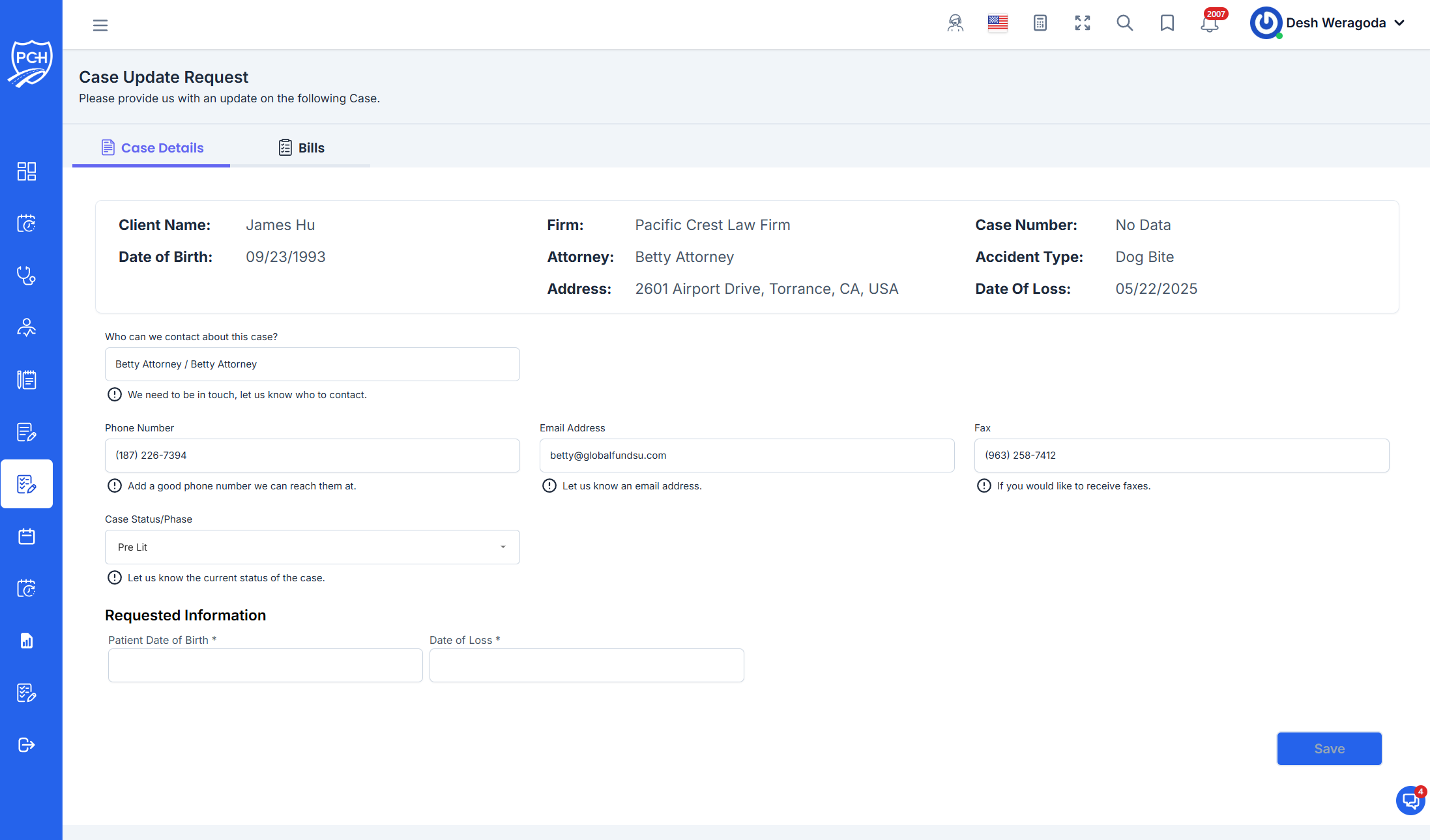
- Header: Request title, requester, created date/time, status.
- Context: Related appointment/case info if applicable.
- Requested Information (bottom): This section contains the exact questions or data being requested. Provide responses here or via linked workflow. Once completed, the request will be marked done and removed from the Dashboard queue.
Behavior
- Visibility: Only requests tied to your assigned cases are displayed.
- Lifecycle: When you respond and submit the information, the request resolves; you may still see it under history/audit.
- Notifications: You may receive an Activity Feed entry when a new request arrives or when it’s resolved.
Tips
- Prioritize: Work newest or high‑impact requests first to keep treatment progressing.
- Attach evidence: If documents are required, upload them from the details screen so they link back to the request.
Troubleshooting
- Can’t find the Requested Information section? Scroll to the bottom of the details view; expand any collapsed panels.
- Request won’t resolve? Ensure all required fields/answers are completed; refresh and verify submission.