PCH Partners — Casino
Overview
The PCH Partners section includes a Casino feature where you can spend earned points on gift cards. Your current points total is shown on the Casino button on the Dashboard. Clicking it opens the Casino Lobby, where you can choose gift cards and view your purchase history.
Accessing the Casino
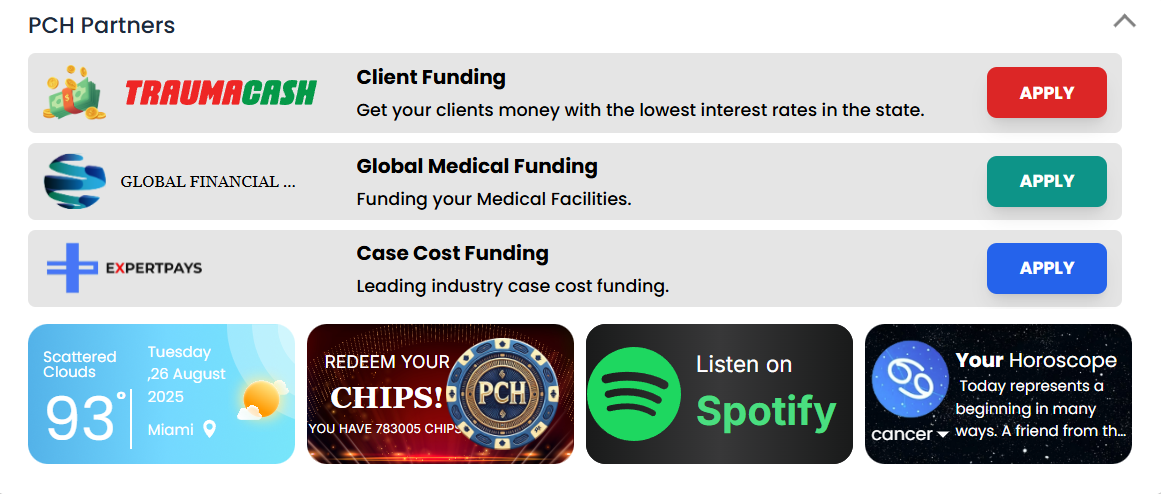
- The Casino button displays your current points balance.
- Click to open the Casino Lobby.
Casino Lobby
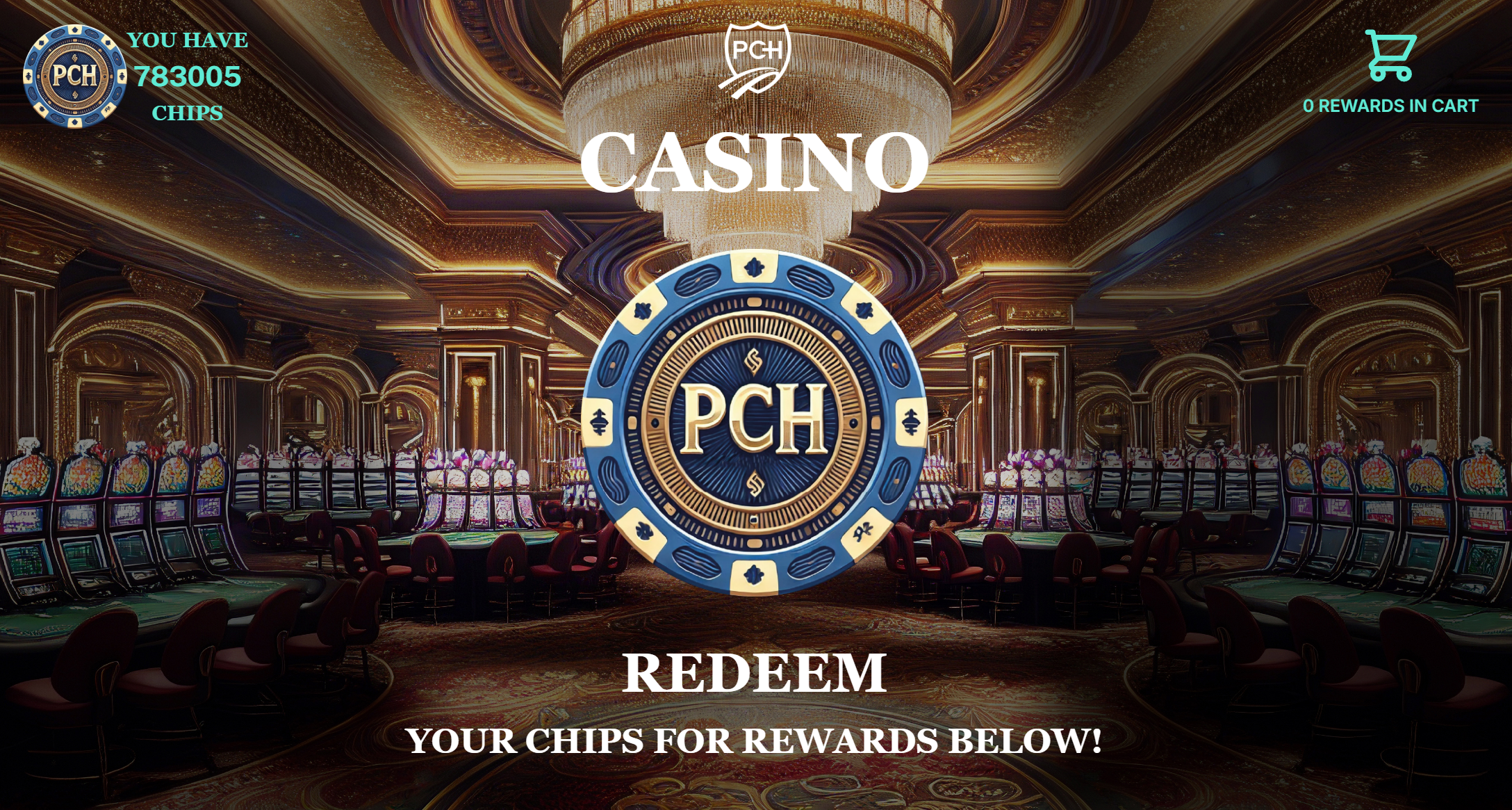
- Browse available gift cards and denominations.
- See your points balance and how many points the selected card costs.
Spend points — Gift card flow
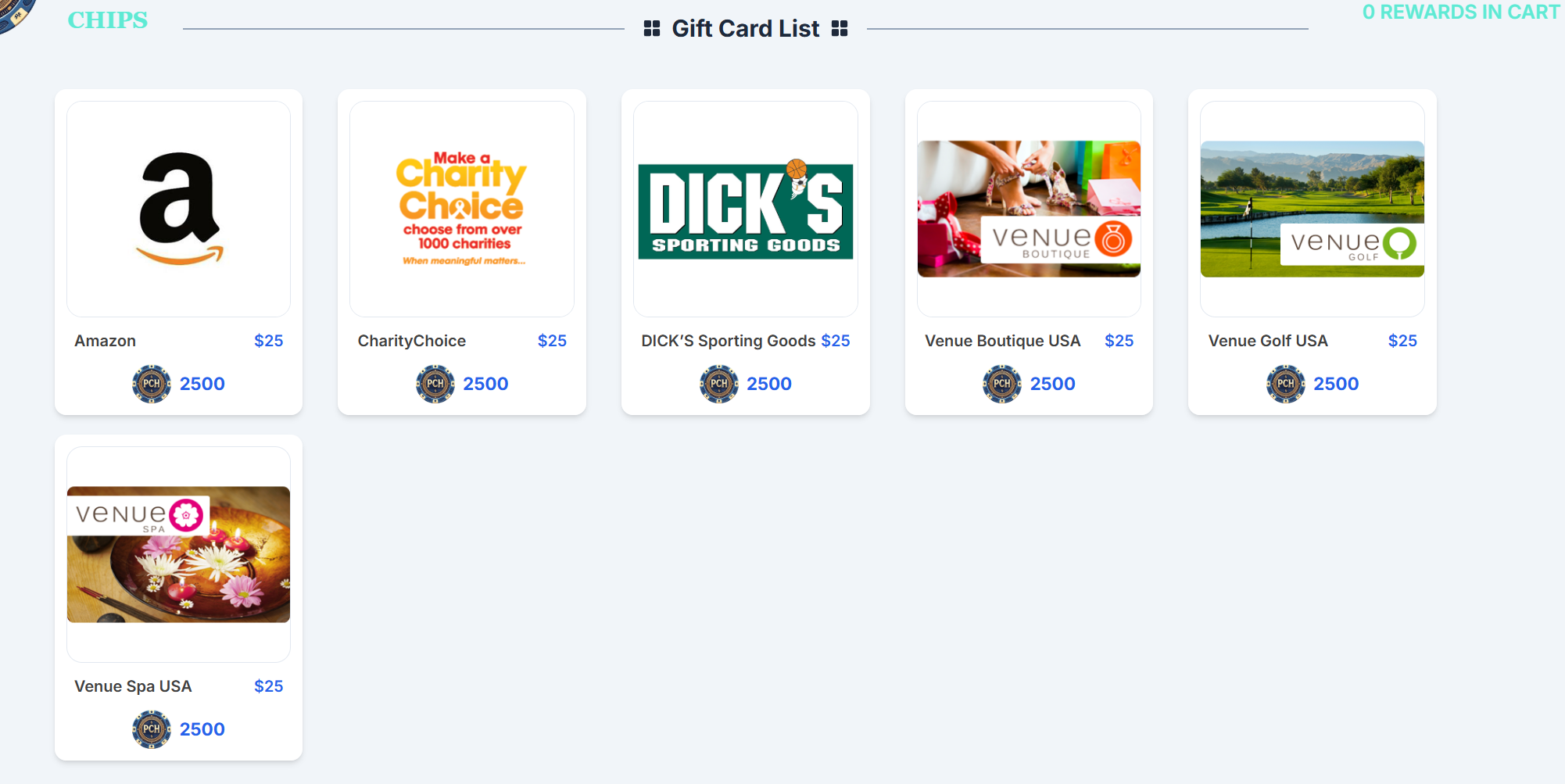
- Select a gift card brand and denomination.
- Review points cost against your balance.
- Confirm the purchase to deduct points and generate the order.
- You will receive confirmation and can access details later from History.
History and tracking
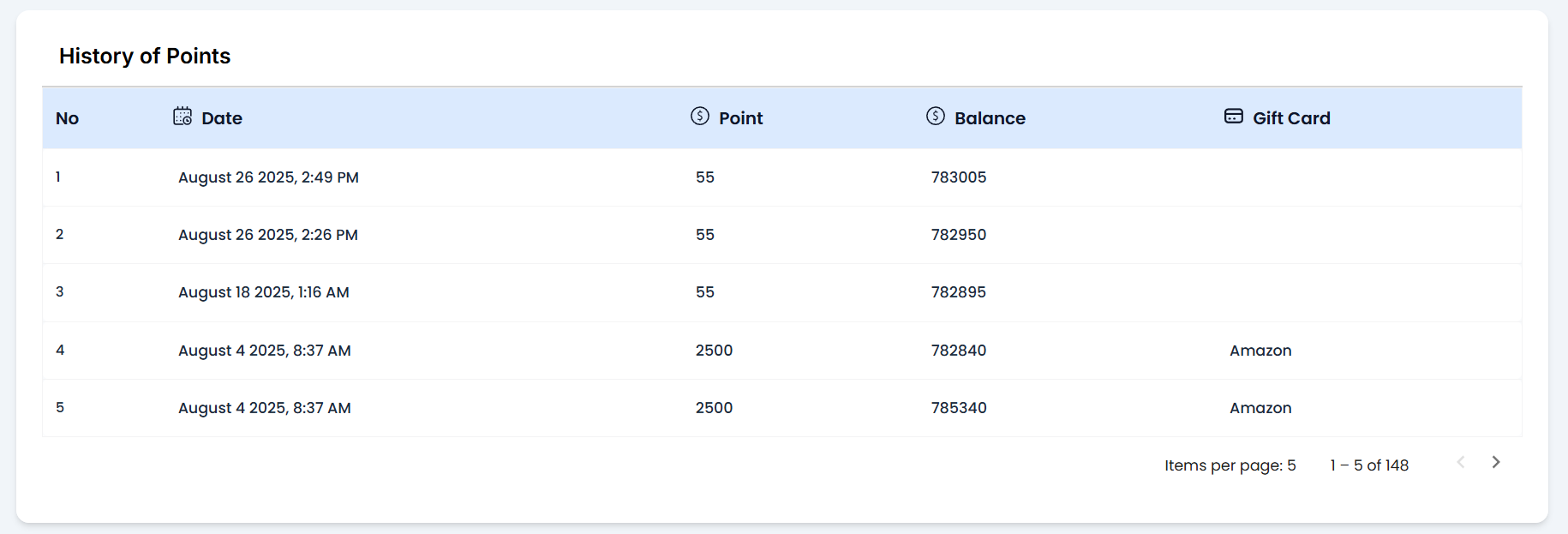
- View a log of points earned, spent, and remaining balance.
- Each gift card purchase is recorded with brand, value, date/time, and status.
- Use history to re-open past orders if you need to retrieve details.
Tips
- Prioritize higher-value redemptions when points are limited.
- Check availability; some brands or denominations may be limited-time.
Troubleshooting
- Points didn’t update? Refresh the dashboard; if still incorrect, wait a minute and try again.
- Purchase failed? Ensure you have enough points and try again; contact support if the balance was deducted without an order showing in History.
See also
- Dashboard — Calendar
- Dashboard — Appointment Requests